Save BrainBuzz to the home screen of your iPhone or iPad and it opens just like an app. You'll need to use Safari for this.
Installing on iPhone and iPad
1. Open BrainBuzz in Safari
Open Safari and go to BrainBuzz Home Access.
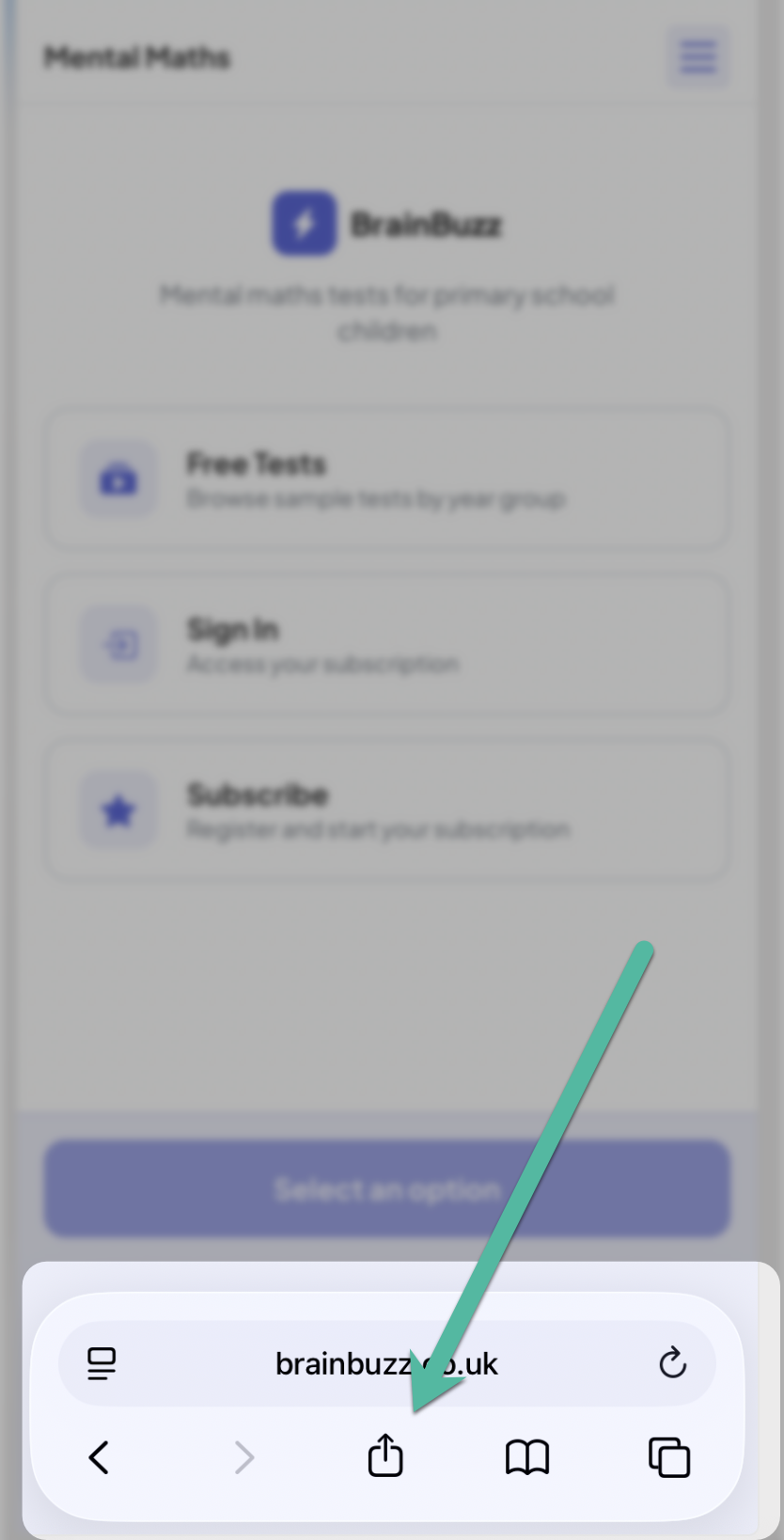
2. Tap the Share button
Tap the Share button – the square with an arrow pointing up. On iPhone it's at the bottom of the screen; on iPad it's at the top.
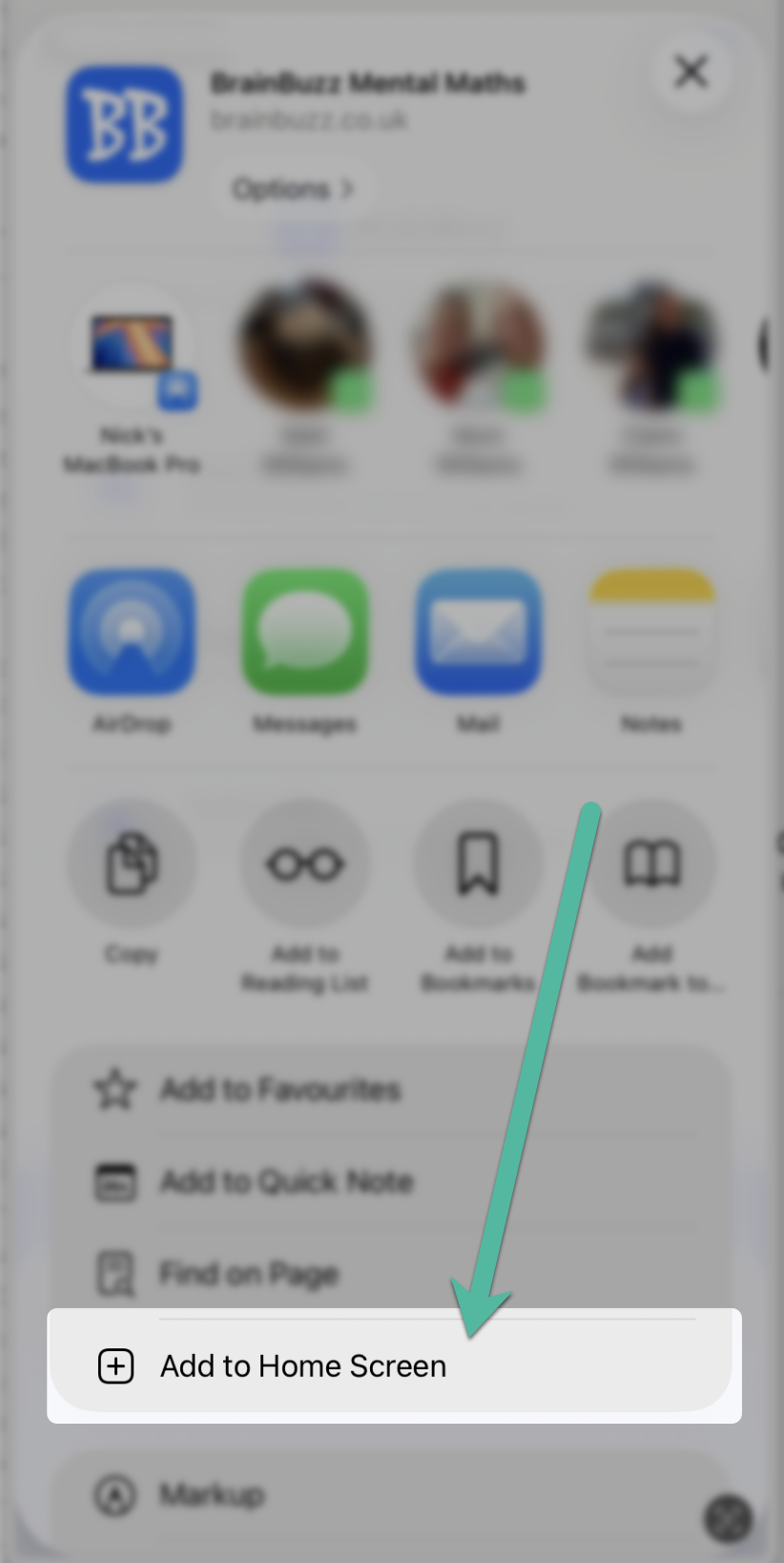
3. Add to Home Screen
Scroll down the list of options and tap Add to Home Screen.
4. Tap Add
Check the name, then tap Add in the top corner.
5. Open the app
The BrainBuzz icon now appears on your home screen. Tap it and log in with your home account email and password.