You can change the card we take your payments from at any time while your subscription is active.
Updating your payment method
1. Open your payment details
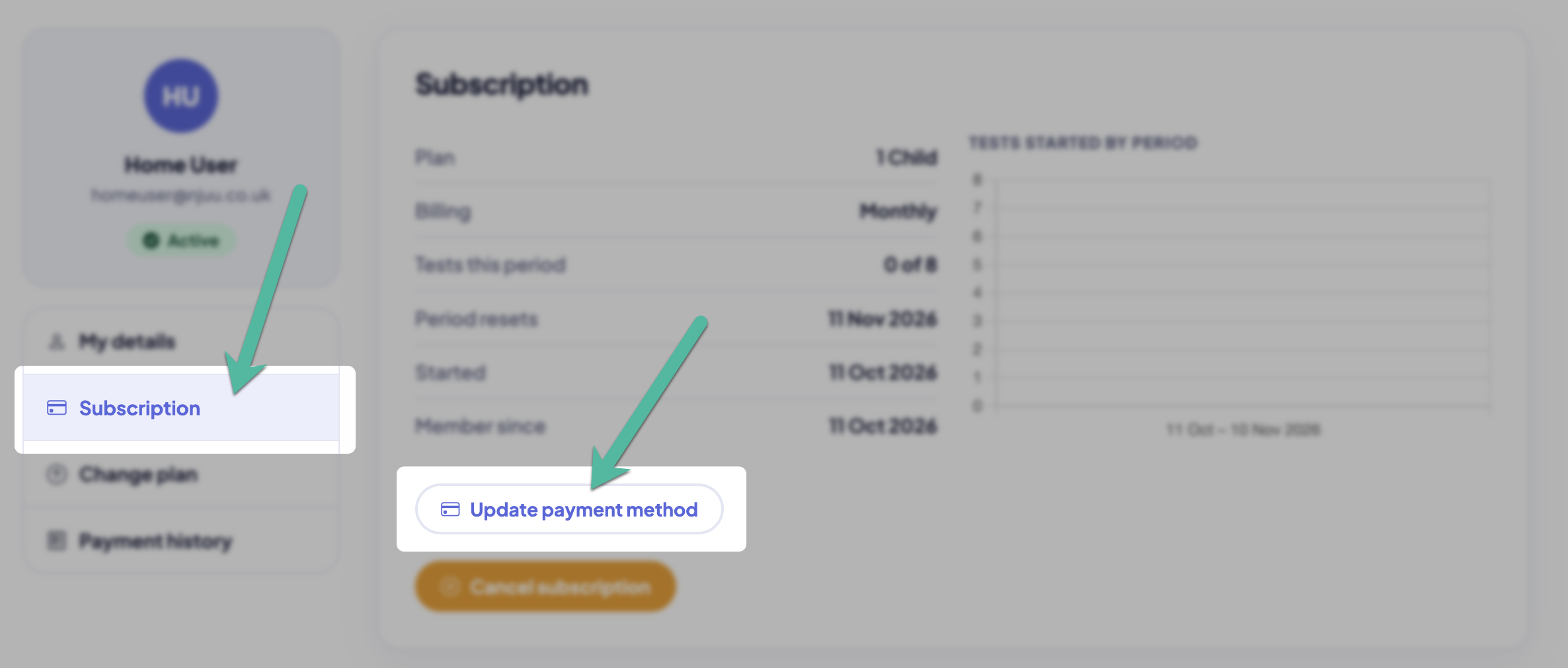
- Sign in to BrainBuzz and go to My Account.
- Choose Subscriptions from the menu on the left.
- Click Update payment method.
This opens a secure page run by Stripe, our payment provider. You don't need a Stripe account.
2. Add your new card
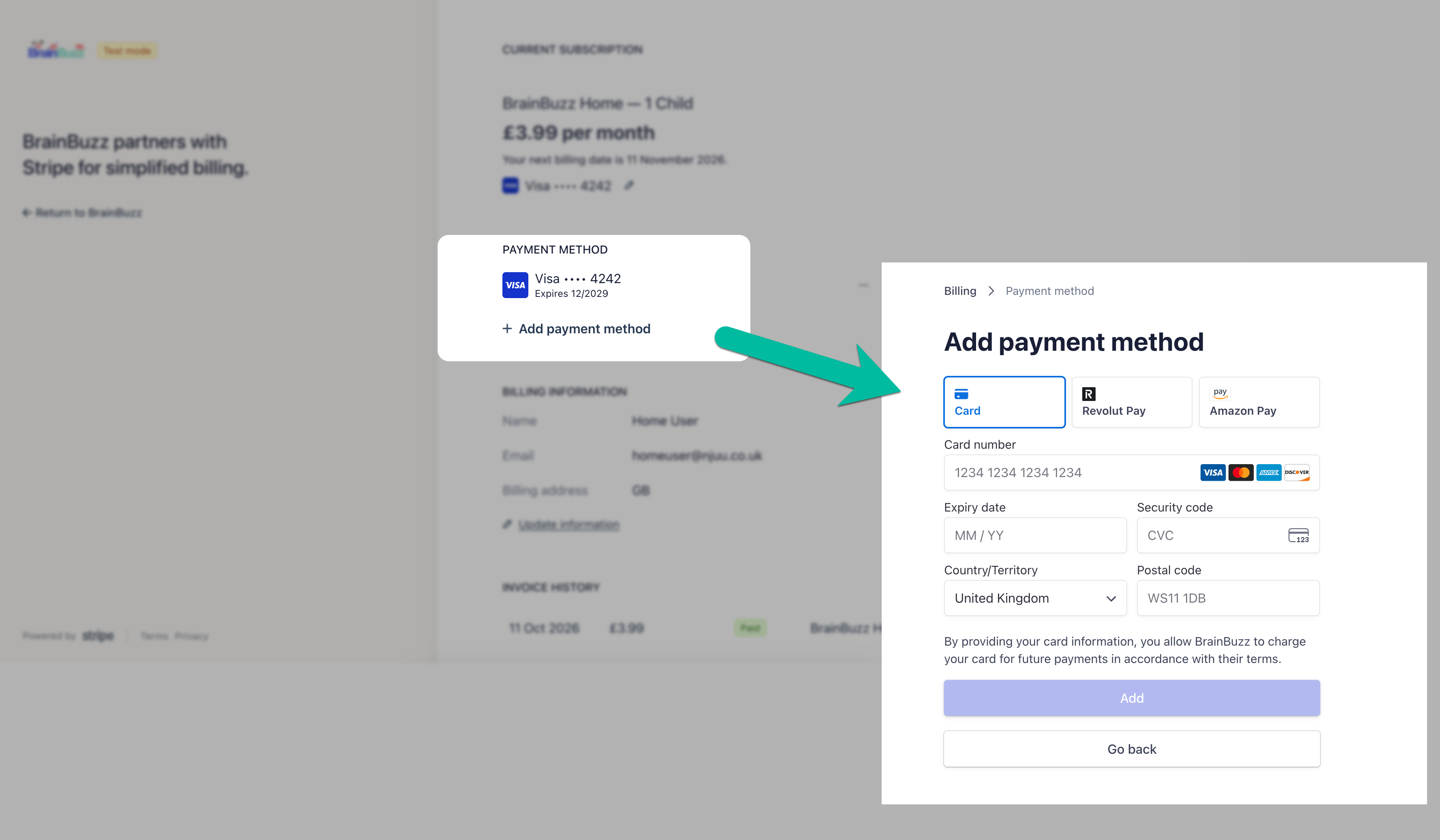
- Under Payment methods, click Add payment method.
- Enter your new card details and save.
- Check that your new card is marked Default. If it isn't, click the … next to it and choose Make default.
Only your default card is charged, so this step is important.
3. Tidy up and return
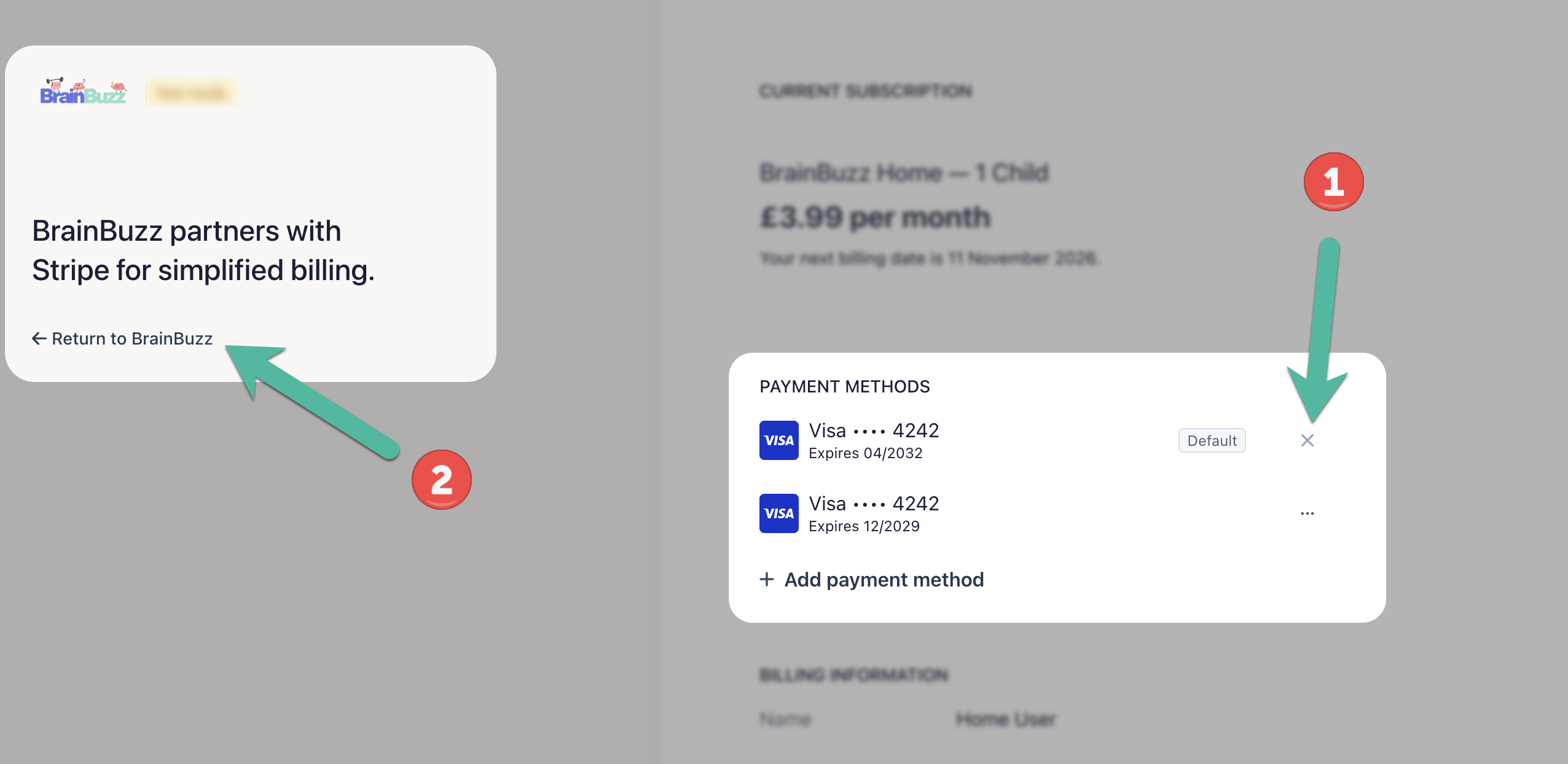
- If you like, remove the old card by clicking the X next to it. You can leave it saved if you prefer.
- Click Return to BrainBuzz at the top left to come back to your account.
Things to know
- Your next payment will be taken from your default card on your renewal date, which is shown on the Stripe page.
- You can also see your plan and your invoice history on the same page.
- To cancel or change your plan, use Cancel subscription or the plan options on your BrainBuzz account page – those aren't available on the Stripe page.
- If your subscription has already ended, you don't need to do this. Start a new subscription from your dashboard and enter your new card when you pay.